https://learn.deeplearning.ai/courses/building-multimodal-search-and-rag/
Building Multimodal Search and RAG - DeepLearning.AI
Build smarter search and RAG applications for multimodal retrieval and generation.
learn.deeplearning.ai
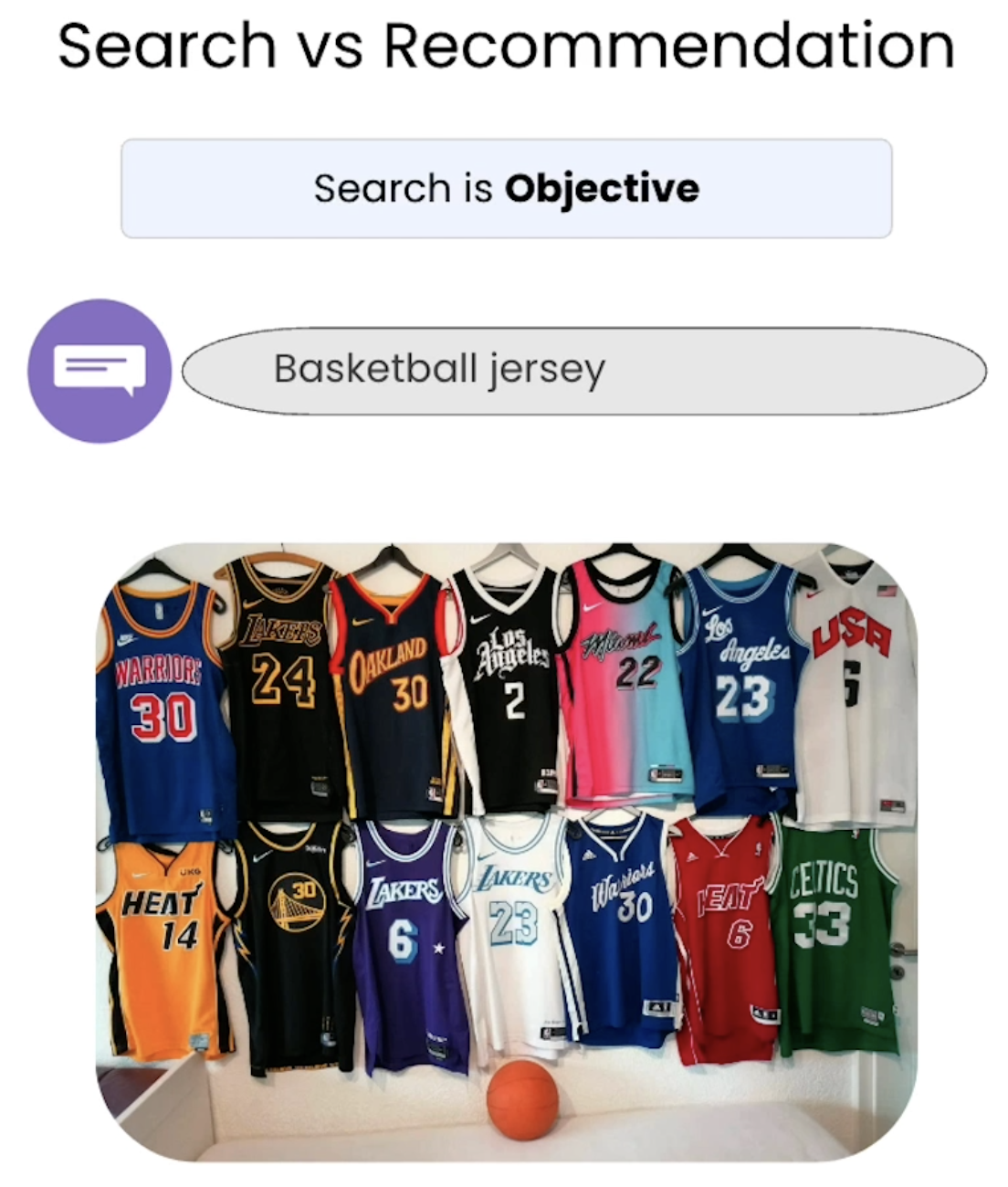
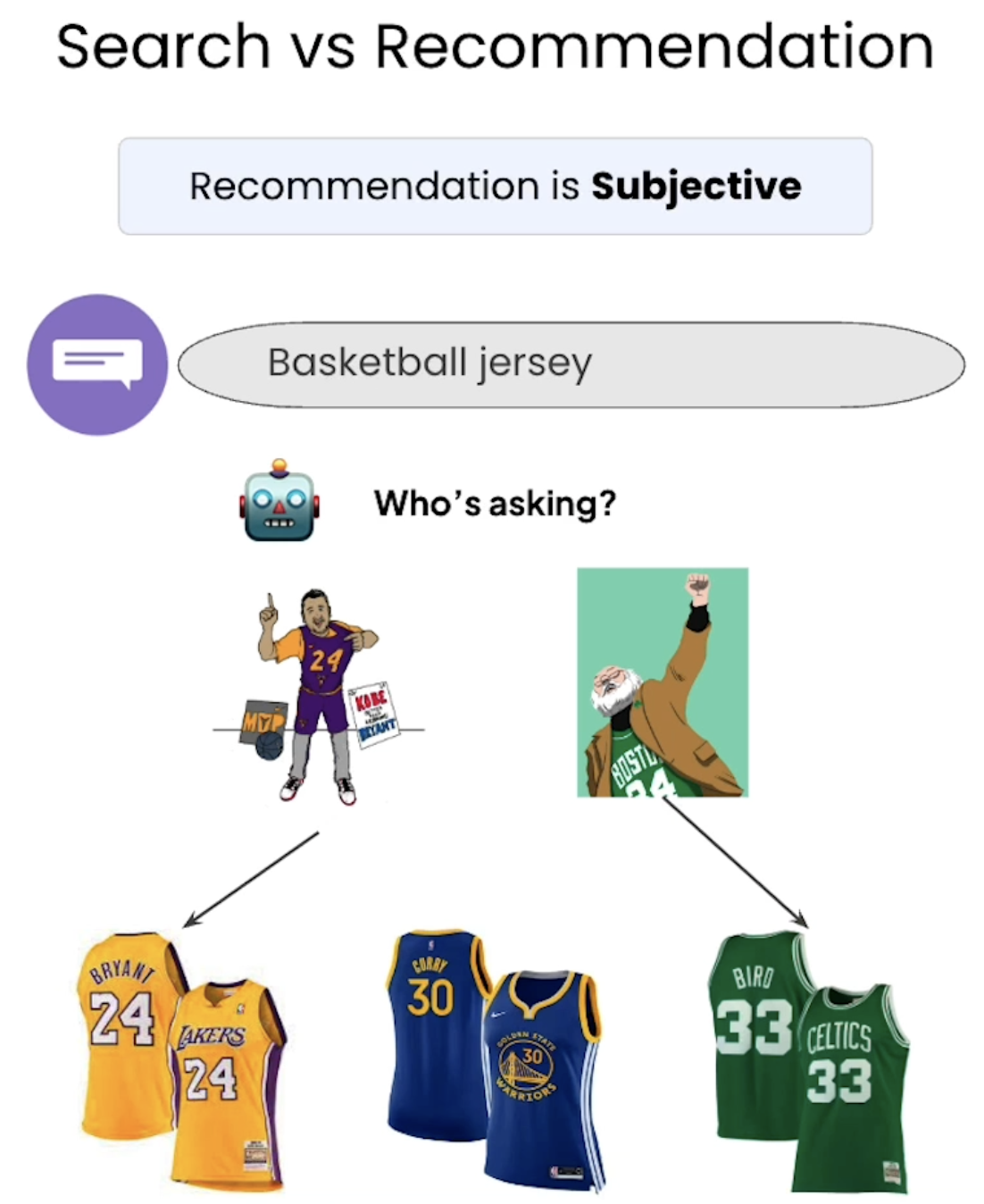
Recommendation은 농구 져지 주세여 했을 때
좀 더 개인화해서 알맞은 걸 주는 거

멀티모달은 개인화 제공함
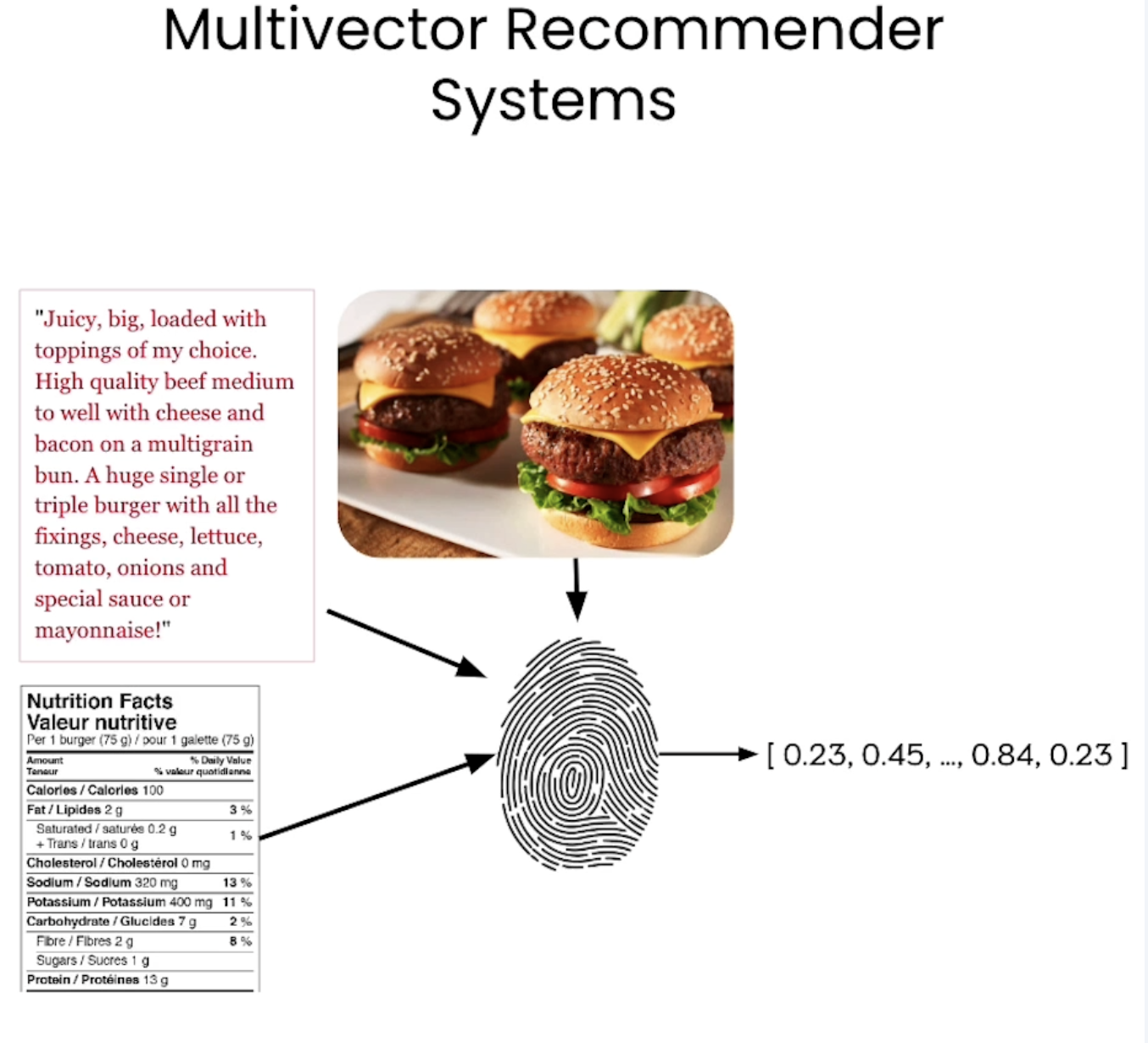
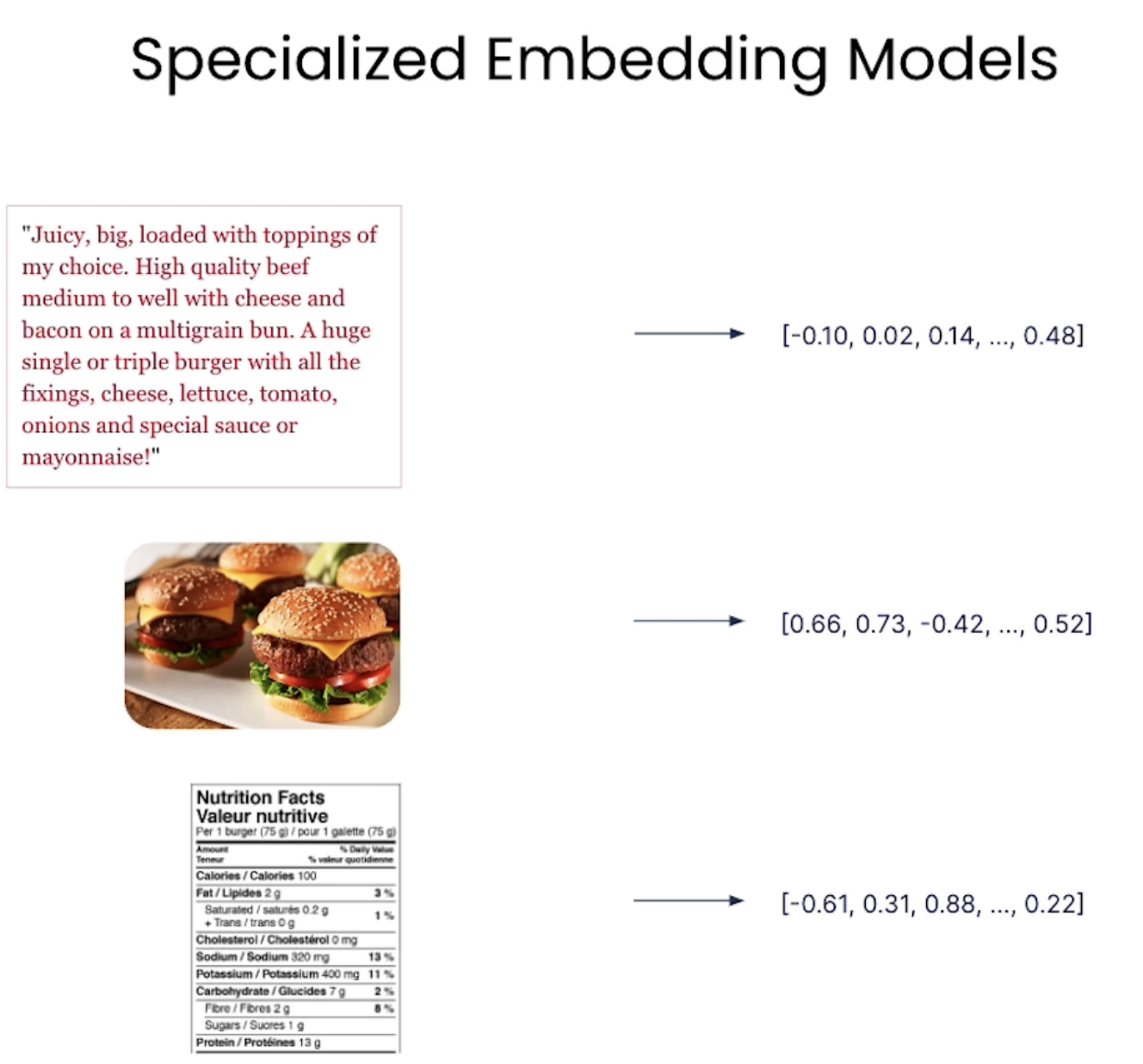
개인화 함으로서 벡터값 하나로 이 모든 정보를 나타낼 수도 있고
각 모달리티마다 벡터값으로 나타낼 수도 있음
어떤 사람은 사진만 보고, 어떤 사람은 캡션만 보고 음식/메뉴를 고를 수 있기 때문에 개인화는 중요함
import warnings
warnings.filterwarnings("ignore")

import os
from dotenv import load_dotenv, find_dotenv
_ = load_dotenv(find_dotenv()) # read local .env file

MM_EMBEDDING_API_KEY = os.getenv("EMBEDDING_API_KEY")
TEXT_EMBEDDING_API_KEY = os.getenv("OPENAI_API_KEY")
OPENAI_BASEURL = os.getenv("OPENAI_BASE_URL")

# Connect to Weaviate
import weaviate

client = weaviate.connect_to_embedded(
    version="1.24.4",
    environment_variables={
        "ENABLE_MODULES": "multi2vec-palm,text2vec-openai"
    },
    headers={
        "X-PALM-Api-Key": MM_EMBEDDING_API_KEY,
        "X-OpenAI-Api-Key": TEXT_EMBEDDING_API_KEY,
        "X-OpenAI-BaseURL": OPENAI_BASEURL
    }
)

client.is_ready()
Create Multivector collection
from weaviate.classes.config import Configure, DataType, Property

# client.collections.delete("Movies")
client.collections.create(
    name="Movies",
    properties=[
        Property(name="title", data_type=DataType.TEXT),
        Property(name="overview", data_type=DataType.TEXT),
        Property(name="vote_average", data_type=DataType.NUMBER),
        Property(name="release_year", data_type=DataType.INT),
        Property(name="tmdb_id", data_type=DataType.INT),
        Property(name="poster", data_type=DataType.BLOB),
        Property(name="poster_path", data_type=DataType.TEXT),
    ],

   # Define & configure the vector spaces
    vectorizer_config=[
        # Vectorize the movie title and overview – for text-based semantic search
        Configure.NamedVectors.text2vec_openai(
            name="txt_vector",                       # the name of the txt vector space
            source_properties=["title", "overview"], # text properties to be used for vectorization
        ),

        # Vectorize the movie poster – for image-based semantic search
        Configure.NamedVectors.multi2vec_palm(
            name="poster_vector",                    # the name of the image vector space
            image_fields=["poster"],                 # use poster property multivec vectorization

            project_id="semi-random-dev",
            location="us-central1",
            model_id="multimodalembedding@001",
            dimensions=1408,
        ),
    ]
)

# Load in data
import pandas as pd
df = pd.read_json("movies_data.json")
df.head()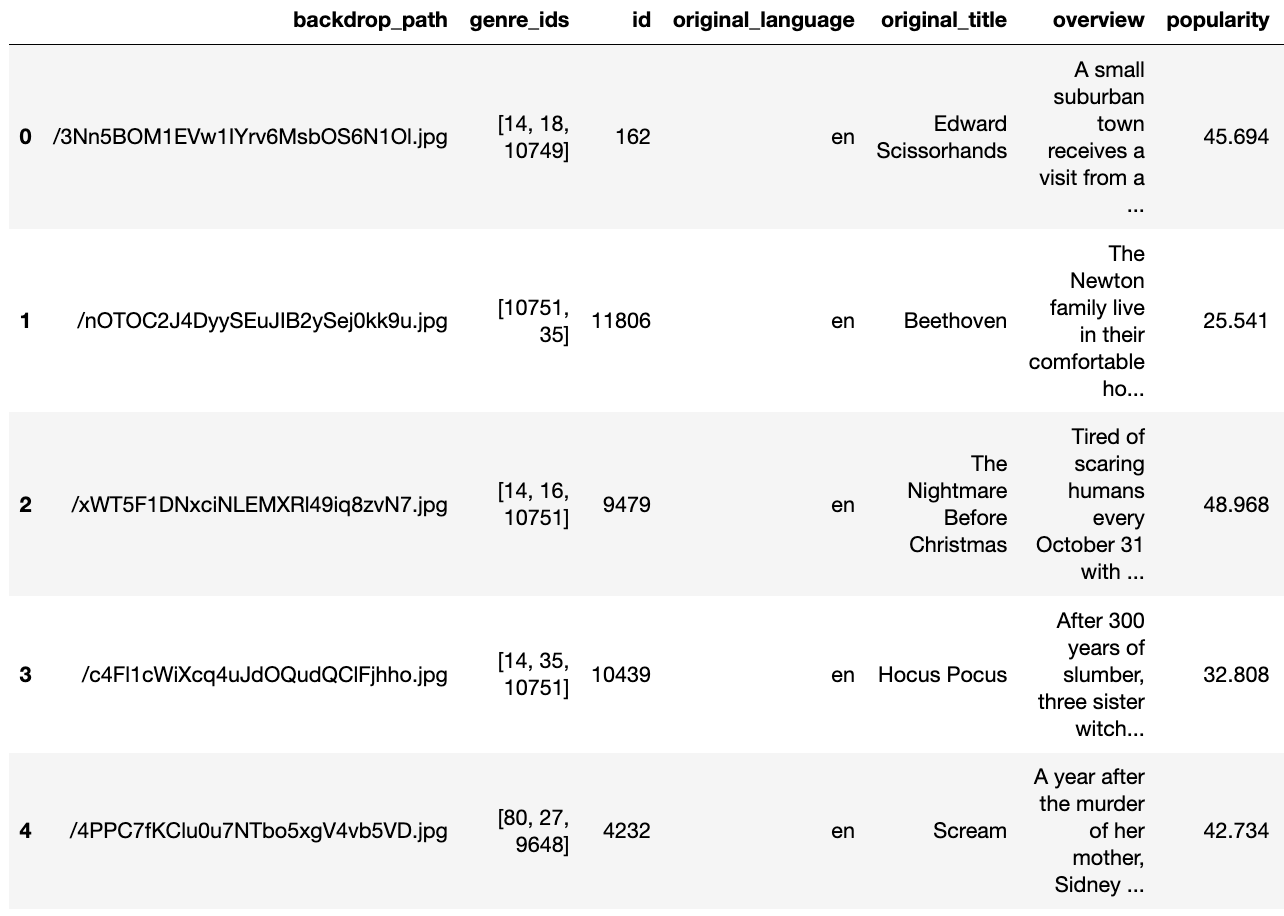

# Helper function
import base64

# Helper function to convert a file to base64 representation
def toBase64(path):
    with open(path, 'rb') as file:
        return base64.b64encode(file.read()).decode('utf-8')

# Import text and image data
from weaviate.util import generate_uuid5

movies = client.collections.get("Movies")

with movies.batch.rate_limit(20) as batch:
    # for index, movie in df.sample(20).iterrows():
    for index, movie in df.iterrows():

        # In case you run it again - Don't import movies that are already in.
        if(movies.data.exists(generate_uuid5(movie.id))):
            print(f'{index}: Skipping insert. The movie "{movie.title}" is already in the database.')
            continue

        print(f'{index}: Adding "{movie.title}"')

        # construct the path to the poster image file
        poster_path = f"./posters/{movie.id}_poster.jpg"
        # generate base64 representation of the poster
        posterb64 = toBase64(poster_path)

        # Build the object payload
        movie_obj = {
            "title": movie.title,
            "overview": movie.overview,
            "vote_average": movie.vote_average,
            "tmdb_id": movie.id,
            "poster_path": poster_path,
            "poster": posterb64
        }

        # Add object to batch queue
        batch.add_object(
            properties=movie_obj,
            uuid=generate_uuid5(movie.id),
        )

# Check for failed objects
if len(movies.batch.failed_objects) > 0:
    print(f"Failed to import {len(movies.batch.failed_objects)} objects")
    for failed in movies.batch.failed_objects:
        print(f"e.g. Failed to import object with error: {failed.message}")
else:
    print("Import complete with no errors")
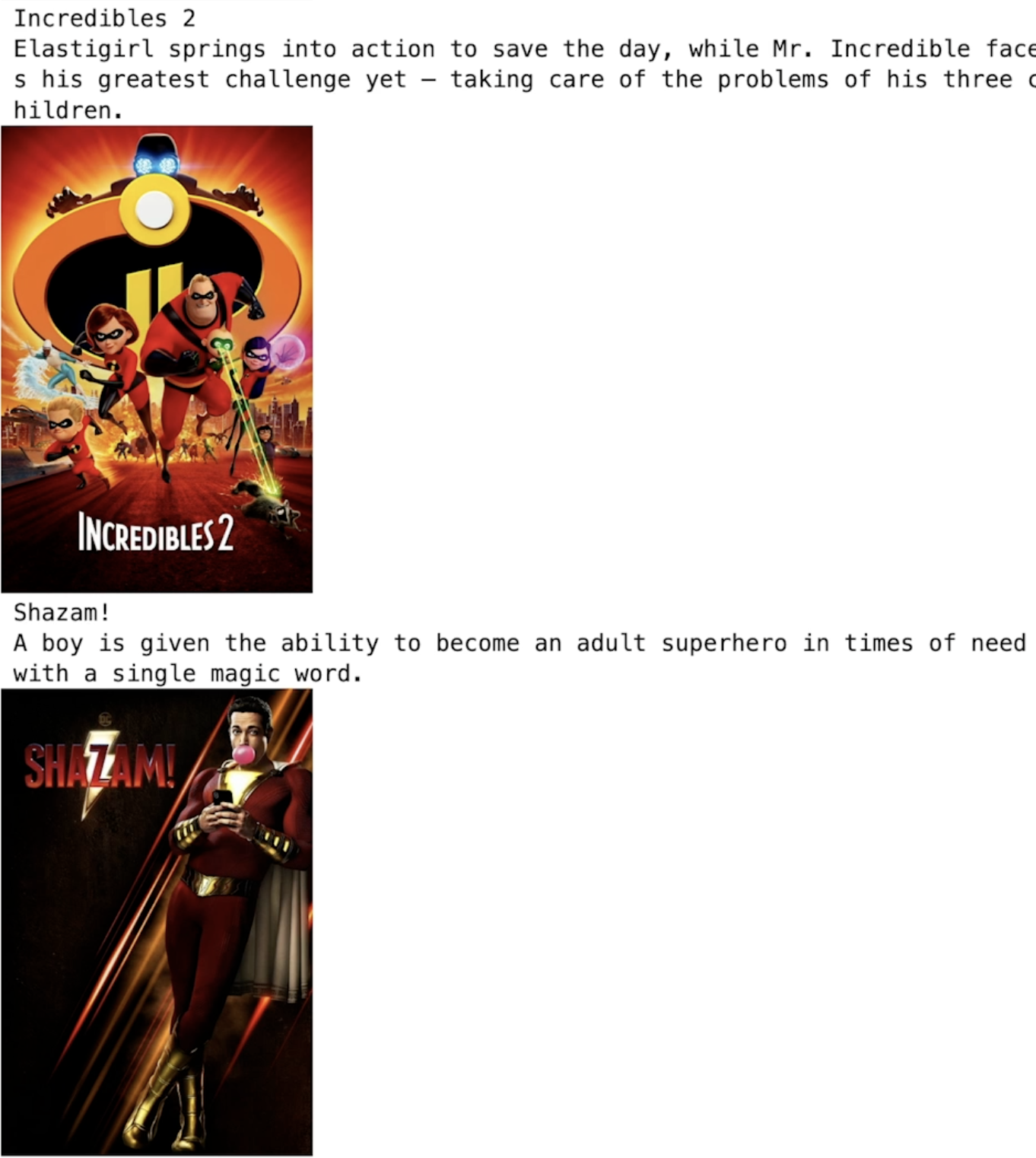
# Text-search through the text vector space
from IPython.display import Image

response = movies.query.near_text(
    query="Movie about lovable cute pets",
    target_vector="txt_vector",  # Search in the txt_vector space
    limit=3,
)

# Inspect the response
for item in response.objects:
    print(item.properties["title"])
    print(item.properties["overview"])
    display(Image(item.properties["poster_path"], width=200))

# Perform query
response = movies.query.near_text(
    query="Epic super hero",
    target_vector="txt_vector",  # Search in the txt_vector space
    limit=3,
)

# Inspect the response
for item in response.objects:
    print(item.properties["title"])
    print(item.properties["overview"])
    display(Image(item.properties["poster_path"], width=200))
# Text-search through the posters vector space
# Perform query
response = movies.query.near_text(
    query="Movie about lovable cute pets",
    target_vector="poster_vector",  # Search in the poster_vector space
    limit=3,
)

# Inspect the response
for item in response.objects:
    print(item.properties["title"])
    print(item.properties["overview"])
    display(Image(item.properties["poster_path"], width=200))

# Perform query
response = movies.query.near_text(
    query="Epic super hero",
    target_vector="poster_vector",  # Search in the poster_vector space
    limit=3,
)

# Inspect the response
for item in response.objects:
    print(item.properties["title"])
    print(item.properties["overview"])
    display(Image(item.properties["poster_path"], width=200))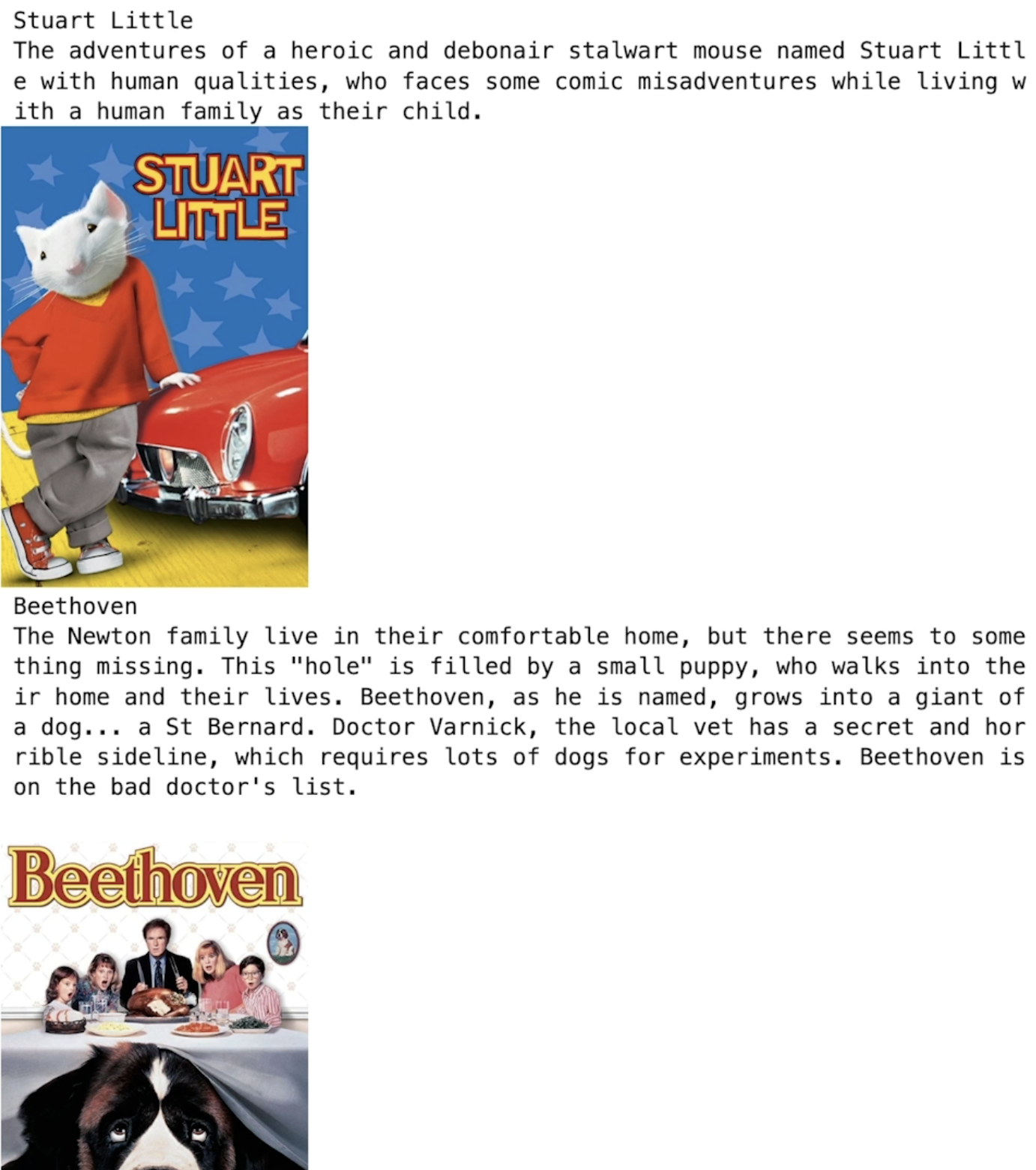

# Image-search through the posters vector space
Image("test/spooky.jpg", width=300)

# Perform query
response = movies.query.near_image(
    near_image=toBase64("test/spooky.jpg"),
    target_vector="poster_vector",  # Search in the poster_vector space
    limit=3,
)

# Inspect the response
for item in response.objects:
    print(item.properties["title"])
    display(Image(item.properties["poster_path"], width=200))

Multi Vector space 사용하는 방법 배웠음!
두 개의 서로 다른 벡터 스페이스
하나는 text vector space, 다른 하나는 multimodal space
그 다음, 다양한 관점에서 데이터 이해
일부 결과는 서로 다른 벡터 스페이스에서 유사할 수 있음
하지만 각 벡터 스페이스와 각 모델은 매우 강력한 다양한 유형의 결과 제공할 수 있음
'LLM' 카테고리의 다른 글
| RAG - Industry Applications (0) | 2026.02.19 |
|---|---|
| RAG - Multimodal RAG (MM-RAG) (0) | 2026.02.19 |
| RAG - Large Multimodal models (0) | 2026.02.15 |
| RAG - Multimodal search (0) | 2026.02.15 |
| RAG - Overview of multimodality (0) | 2026.02.13 |


